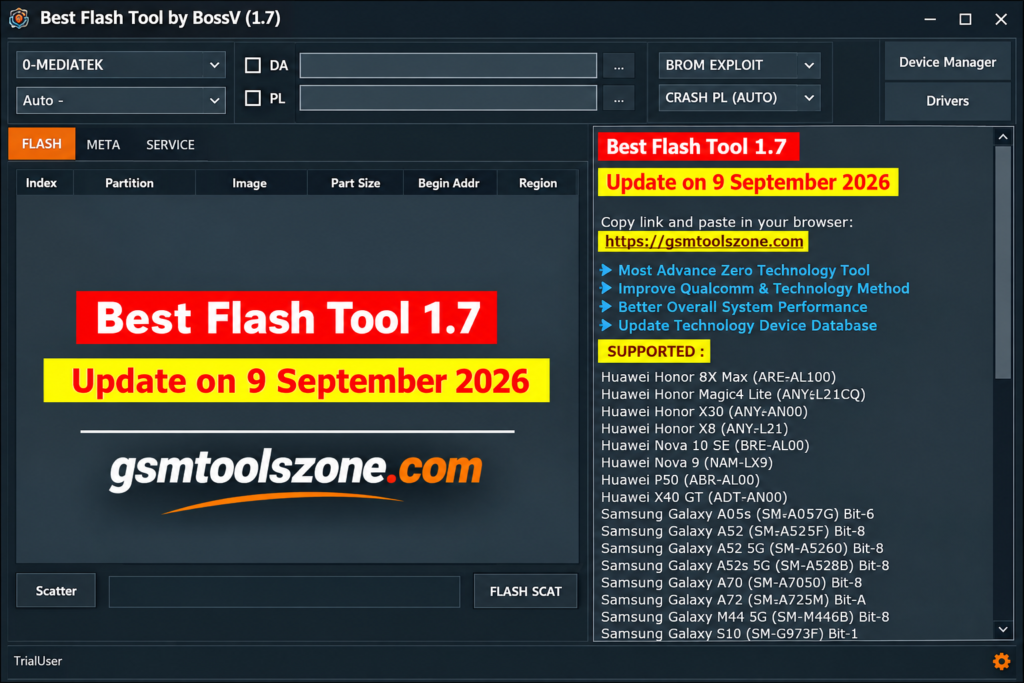
BFT Tool Failed to Check for New Version: Easy Fix 2026
Getting the “BFT Tool Failed to Check for New Version” error when opening BFT Tool can be frustrating, especially when you need the tool for Android servicing or repair work. In most cases, this message does not mean that the software is damaged.
The error usually appears when BFT Tool cannot connect to its online update service. An unstable internet connection, Windows Firewall, antivirus software, VPN, proxy, or a temporary update-server problem can prevent the tool from checking for a newer version.
The good news is that you can usually fix this problem with a few basic troubleshooting steps. This guide explains the common causes and practical solutions without requiring unnecessary reinstallation.
What Does “BFT Tool Failed to Check for New Version” Mean?
The BFT Tool Failed to Check for New Version message means that the software was unable to communicate with its update server when it started.
Many Windows-based repair tools perform an online version check during startup. BFT Tool may need an active internet connection to determine whether a newer release is available.
If the connection is blocked or unavailable, the tool may display the error before continuing.
This does not always mean that BFT Tool itself is broken.
Why Does the ” BFT Tool Failed to Check for New Version Error Appear?
There can be several reasons behind this error. The most common ones are related to network connectivity and Windows security settings.
1. Internet Connection Is Not Working
The first thing to check is your internet connection.
If your computer is offline or the connection keeps disconnecting, BFT Tool cannot contact its update service. A weak connection is one of the most common causes of the BFT Tool Failed to Check for New Version error.
Try opening a few websites in your browser. If they load slowly or fail to open, fix your internet connection first.
2. Slow or Unstable Internet
A connection can be active but still unstable.
If the connection drops while BFT Tool is checking for updates, the version check may fail. You can try:
- Restarting your router
- Connecting to another Wi-Fi network
- Using a mobile hotspot
- Closing unnecessary downloads
- Waiting a few minutes and trying again
3. Windows Firewall Is Blocking BFT Tool
Windows Firewall can sometimes prevent an application from communicating with the internet.
If BFT Tool has internet access problems while other applications work normally, check whether Windows Firewall is blocking the program.
Instead of permanently disabling your firewall, allow the application through the firewall when appropriate and only if you trust the software. If Windows Firewall blocks the application, you may see the BFT Tool Failed to Check for New Version message even when your internet is working.
4. Antivirus Software Is Blocking the Connection
Third-party antivirus or security software can also interfere with repair tools.
Some security applications may restrict unknown applications from accessing the internet.
Check your antivirus notifications, quarantine area, or application/network protection settings. If you trust the BFT Tool package, make sure the program is not being incorrectly blocked. Do not disable security software permanently just to bypass an error.
5. VPN or Proxy Problems
A VPN or Windows proxy configuration can change how an application connects to the internet.
If you are using a VPN or proxy, temporarily disconnect it and restart BFT Tool.
If the tool works afterward, the network configuration was likely preventing its update check.
6. BFT Update Server Is Temporarily Unavailable
Sometimes the problem is not on your computer.
If your internet works correctly and Windows security settings are not blocking the application, the BFT update service itself could be temporarily unavailable.
In that situation, repeatedly reinstalling the software will usually not solve the problem.
Wait for some time and try again.
How to Fix BFT Tool Failed to Check for New Version?
Try the following solutions in order. Start with the simple checks before changing Windows settings. If you are facing the BFT Tool Failed to Check for New Version problem, follow these fixes one by one.
Fix 1: Check Your Internet Connection
Make sure your PC is connected to the internet.
Open your browser and visit a few trusted websites.
If pages do not load:
- Restart your internet connection.
- Reconnect to Wi-Fi.
- Try another network.
- Use a mobile hotspot if available.
- Restart the computer.
After the connection becomes stable, open BFT Tool again.
Fix 2: Restart BFT Tool
Sometimes the application simply fails during its first connection attempt.
Close BFT Tool completely.
Then:
- Open Task Manager.
- Check whether BFT Tool is still running.
- End the related process if necessary.
- Start the tool again.
A fresh startup can allow the update check to complete normally.
Fix 3: Run BFT Tool as Administrator
Windows permissions can occasionally affect how an application works.
To run BFT Tool with administrator privileges:
- Find the BFT Tool shortcut or executable file.
- Right-click it.
- Select Run as administrator.
- Approve the Windows prompt.
- Wait for the application to start.
If this resolves the problem, you can also configure the application to always run with administrator privileges through its compatibility settings.
Fix 4: Check Windows Firewall
If your internet is working but BFT Tool cannot connect, check Windows Firewall.
Go to:
Windows Security → Firewall & network protection → Allow an app through firewall
Look for BFT Tool in the allowed applications list.
If it is not listed, review the application’s firewall permission according to your Windows configuration.
Avoid turning off the firewall completely. Allowing a trusted application is a safer approach than disabling Windows security.
Fix 5: Check Antivirus Protection
Open your antivirus or Windows security software and check whether BFT Tool has been blocked.
Look for:
- Quarantined files
- Blocked applications
- Network protection alerts
- Controlled application access
- Suspicious application notifications
If the file came from an untrusted source, scan it before running it rather than adding an exception immediately.
Fix 6: Disable VPN or Proxy Temporarily
If you use a VPN, disconnect it and launch BFT Tool again.
You can also check Windows proxy settings under:
Settings → Network & Internet → Proxy
Make sure your proxy configuration is correct for your network.
If BFT Tool starts working after changing the connection, the VPN or proxy was likely interfering with the update request.
Fix 7: Restart Your PC
A simple Windows restart can fix temporary networking, permission, or application-process problems.
Restart the computer and then:
- Connect to a stable network.
- Close unnecessary applications.
- Start BFT Tool.
- Wait for the version check to finish.
Fix 8: Check Date and Time Settings
Incorrect Windows date or time settings can sometimes cause problems with secure internet connections.
Open Windows date and time settings and enable automatic time synchronization.
Make sure:
- Date is correct
- Time is correct
- Time zone is correct
- Automatic time synchronization is enabled
Then restart the BFT Tool.
Fix 9: Try Another Internet Connection
If the problem continues, test the BFT Tool using another network.
For example, you can switch from:
Wi-Fi → Mobile Hotspot
If the tool works on another connection, the original network may have a firewall, DNS, proxy, or filtering issue. This is a useful way to determine whether the problem is with BFT Tool or your network.
Do You Need to Reinstall BFT Tool?
Before reinstalling the software, make sure the BFT Tool Failed to Check for New Version error is not caused by your internet or Windows security settings.
If the only message you receive is “Failed to Check for New Version,” reinstalling the tool should not be your first solution.
The error is often caused by:
- Internet connectivity
- Firewall restrictions
- Antivirus blocking
- VPN/proxy configuration
- Update-server availability
Reinstalling becomes more useful when BFT Tool does not launch at all, important program files are missing, or the installation is corrupted.
Before reinstalling, make sure you are using a legitimate and trusted software package.
BFT Tool Failed to Check for New Version, but Internet Is Working
This situation can be confusing. Your browser may work perfectly while BFT Tool still cannot check for updates. That is possible because browsers and desktop applications do not always use the network in the same way. In some cases, the BFT Tool Failed to Check for New Version error can appear even when other websites and applications are working normally.
The application may be affected by:
- Windows Firewall rules
- Antivirus network protection
- Proxy settings
- VPN routing
- DNS problems
- Application permissions
- Update-server availability
Therefore, having working internet does not automatically mean every application can reach its own server.
How to Find the Actual Cause
A simple troubleshooting process can help you identify where the problem is.
| Check | What It Tells You |
| Browser works | Basic internet is available |
| BFT Tool fails | Application connection may be blocked |
| VPN off fixes it | VPN was interfering |
| Firewall permission fixes it | Windows Firewall was blocking access |
| Another network works | Original network may be the problem |
| Nothing works | An update server or application issue may be involved |
This approach is better than randomly changing Windows settings.
BFT Tool Not Opening After the Update Error
If BFT Tool Failed to Check for New Version appears before the program closes, first check the application’s network and Windows permissions.
You should also check for common Windows software requirements such as:
- Correct application installation
- Required runtime components
- Windows permissions
- Antivirus interference
- Corrupted application files
- Compatible Windows version
If you see a separate error such as MSVCR100.dll, MSVCP100.dll, or another missing component message, that is a different problem and should be troubleshot separately. Do not download random DLL files from unknown websites. Use trusted Microsoft-provided runtime packages when a Microsoft Visual C++ component is required.
Important Safety Tips
Before troubleshooting the BFT Tool Failed to Check for New Version error, make sure the software is from a trusted source.
Before performing any repair operation:
- Confirm the exact device model.
- Use firmware made for the correct model and variant.
- Install the required USB drivers.
- Keep the device sufficiently charged.
- Use a reliable USB data cable.
- Avoid disconnecting the phone during firmware operations.
- Back up important data whenever possible.
- Verify every operation before starting.
- Only repair devices that you are authorized to service.
A version-check problem should not be treated as a reason to immediately flash the phone or change its firmware.
Conclusion
If you continue to see BFT Tool Failed to Check for New Version, check the network, firewall, antivirus, and update-server connection before reinstalling the tool. Start with the basics: verify your internet connection, restart the tool, try administrator mode, and check Windows Firewall and antivirus settings.
If the problem continues, testing another network and checking VPN, proxy, and Windows time settings can help identify the cause. Most importantly, do not start flashing firmware or changing phone software simply because the tool cannot perform its online version check.
By troubleshooting the connection first and making changes carefully, you can often get BFT Tool working again without reinstalling Windows or performing unnecessary operations.
FAQ’s
Why does BFT Tool say Failed to Check for New Version?
It usually means that BFT Tool cannot connect to its online update service. Check your internet connection, firewall, antivirus, VPN, proxy, and Windows network settings.
Can I use BFT Tool without an internet connection?
If the installed version requires an online version check, the startup process may fail when the computer is offline. Requirements can also vary between BFT Tool versions.
Should I reinstall BFT Tool?
Reinstallation is not normally the first step for this particular error. First, check the internet connection, firewall, antivirus, VPN, and proxy settings.
Why does BFT Tool work on one network but not another?
The two networks may have different firewall, DNS, proxy, filtering, or routing configurations. Testing another network can help identify whether the original connection is causing the problem.
Can Windows Firewall cause this error?
Yes. Windows Firewall can prevent an application from making an internet connection. Check its allowed app settings rather than disabling the firewall completely.
Will this error erase my phone data?
The version-check error itself does not normally erase device data. However, separate BFT Tool servicing operations such as flashing or factory-reset-related functions may have data-loss consequences.