BFT Tool USB Device Not Detected: Easy Fix 2026
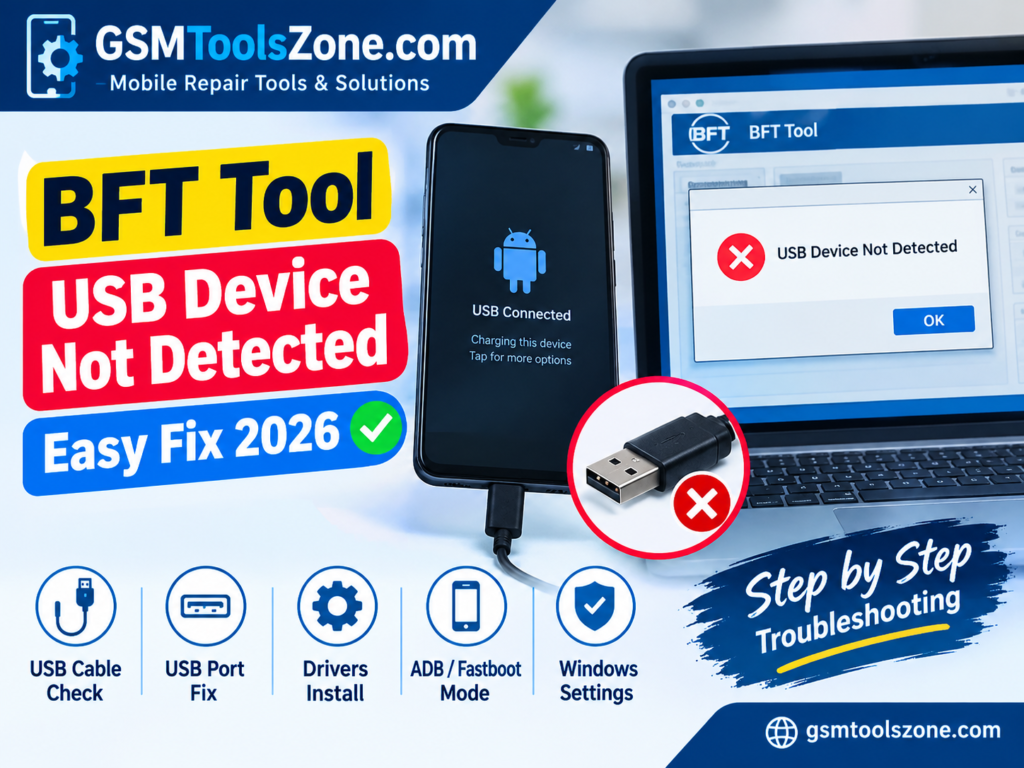
Getting the BFT Tool USB Device Not Detected error can be frustrating when you need to connect an Android phone for servicing or repair. The problem usually means that Windows or BFT Tool cannot properly communicate with the connected device.
A faulty USB cable, missing drivers, a damaged USB port, incorrect connection mode, Windows permissions, or a temporary device connection problem can cause this issue. Sometimes the phone is connected to the computer, but BFT Tool still cannot recognize it.
The good news is that you can check these problems one by one without immediately reinstalling the tool or changing the phone software. This guide explains the common causes and practical ways to fix the BFT Tool USB Device Not Detected problem.
What Does BFT Tool USB Device Not Detected Mean?
The BFT Tool USB Device Not Detected message means that BFT Tool cannot properly recognize or communicate with the Android phone connected to your Windows PC.
Windows may detect the phone while BFT Tool does not. In other cases, the computer may not detect the phone at all.
This can happen because the required USB driver is missing, the cable is only suitable for charging, the USB port has a problem, or the phone is not in the correct connection mode. Before trying advanced solutions, it is better to check the basic USB connection first.
Why Is BFT Tool Not Detecting My Phone?
There are several possible reasons why BFT Tool USB Device Not Detected errors can occur when connecting a supported Android phone.
1. Faulty USB Cable
A damaged or low-quality USB cable can prevent proper communication between the phone and computer.
Some cables support charging but do not properly support data transfer. If the phone only charges after connecting it to the PC, the cable may be the problem.
Try another good-quality USB data cable and check the connection again.
2. USB Driver Is Missing
BFT Tool depends on Windows drivers to communicate with supported Android devices.
If the required driver is missing or incorrectly installed, the phone may not appear correctly in Windows Device Manager.
Depending on the device and operation, different USB drivers may be required.
3. USB Port Problem
The USB port on your computer can also cause connection problems.
A loose or damaged port may provide power but fail to maintain a stable data connection.
Try another USB port, preferably a direct port on the computer instead of using a USB hub.
4. Phone Is Not in the Correct Mode
Android devices can use different connection modes depending on the operation.
For example, some tasks may require:
- Normal USB connection
- ADB mode
- Fastboot mode
- Boot mode
- Another supported servicing mode
If the phone is in the wrong mode, BFT Tool may not recognize it.
5. USB Debugging Is Not Enabled
For operations that depend on ADB communication, USB debugging may need to be enabled on the phone.
If the device is running normally and ADB is required, check the Developer Options and USB debugging settings.
6. Windows Driver Conflict
Sometimes an old or incorrect driver can interfere with the new driver.
This can happen after installing several mobile servicing tools on the same computer. Windows Device Manager may show an unknown device or a device with a warning icon.
7. Phone Is Not Properly Connected
A loose USB connection can cause the device to repeatedly connect and disconnect.
Make sure the cable is firmly connected to both the phone and computer.
If the connection keeps dropping, test another cable and USB port.
8. Windows Permissions or Security Software
Windows security settings can sometimes affect applications and drivers.
If the driver is installed but BFT Tool still cannot communicate with the phone, check Windows security notifications and application permissions.
Do not permanently disable security software just to make the tool detect a device.
How to Fix BFT Tool USB Device Not Detected
If you are facing the BFT Tool USB Device Not Detected problem, try the following solutions in order. Start with the simple checks before changing drivers or Windows settings.
| Fix | Problem / Check | Solution |
|---|---|---|
| Fix 1: Check the USB Cable | A faulty or charging-only USB cable may prevent proper data communication between the phone and PC. | Disconnect the phone and reconnect it with a reliable USB data cable. Try another cable if possible. Check whether the phone appears in Windows File Explorer. |
| Fix 2: Try Another USB Port | A damaged USB port, loose adapter, USB hub, or extension cable can cause connection problems. | Connect the phone directly to another USB port on the computer. Avoid USB hubs, damaged ports, loose adapters, and unnecessary extension cables. Restart BFT Tool and check again. |
| Fix 3: Restart the Phone and Computer | Temporary Windows or Android connection problems can prevent device detection. | Disconnect the phone and restart both devices. After Windows starts, connect the phone, wait for detection, check Device Manager, open BFT Tool, and test the connection again. |
| Fix 4: Check Device Manager | Windows may not be detecting the phone or its driver correctly. | Right-click the Windows Start button → Device Manager. Connect the phone and look for the device, an unknown device, or a yellow warning icon. Avoid random drivers from unknown websites. |
| Fix 5: Install the Required USB Drivers | A missing or incorrect USB driver can prevent BFT Tool from communicating with the device. | Install the appropriate driver for your device and required operation. Restart Windows, reconnect the phone, wait for the driver to load, and check BFT Tool again. |
| Fix 6: Check USB Debugging | ADB-based BFT Tool operations may require USB debugging. | Open Developer Options on the supported Android device and check USB debugging. If an authorization prompt appears, review it carefully before allowing computer access. |
| Fix 7: Select the Correct Connection Mode | The phone may not be in the mode required for BFT Tool operation. | Use the connection mode required for your device and operation, such as ADB, Fastboot, Boot Mode, or another supported service mode. Do not randomly change modes. |
| Fix 8: Reinstall a Problematic Driver | Windows may detect the phone, but the installed driver may not be working correctly. | Identify the problematic device/driver, remove or reinstall the appropriate driver, then restart the computer. Reconnect the phone, check Device Manager, and test BFT Tool again. |
| Fix 9: Close Other Android Tools | Other Android servicing applications may already be communicating with the phone through ADB, Fastboot, or another interface. | Close unnecessary Android servicing tools before using BFT Tool. Then reconnect the phone and try the operation again. |
| Fix 10: Try Another Computer | The problem may be related to the current PC, drivers, USB ports, Windows configuration, phone, or cable. | Test the phone on another Windows computer. If it works there, the original PC may require further driver, USB, or Windows troubleshooting. |
BFT Tool Detects USB but Not the Phone
Sometimes Windows detects a USB connection, but BFT Tool USB Device Not Detected can still appear because the tool cannot properly communicate with the phone.
This can happen when the required communication driver is not installed, or the phone is using a different connection mode.
Check the following:
- Required USB driver
- Device Manager
- USB debugging
- ADB connection
- Fastboot mode
- Correct USB cable
- Correct BFT Tool operation
- Other Android tools running in the background
If another application can communicate with the phone but BFT Tool cannot, check whether the BFT Tool version supports that particular device and connection mode.
BFT Tool USB Device Not Detected in Device Manager
If the phone does not appear correctly in Device Manager, Windows may not have recognized the hardware properly.
Try these basic steps:
- Disconnect the phone.
- Restart the computer.
- Try another USB cable.
- Try another USB port.
- Connect the phone again.
- Open Device Manager.
- Check for an unknown device or warning icon.
- Install the correct driver if required.
If Windows continues to show an unknown device, the issue may be related to the USB cable, port, driver, phone connection, or Windows configuration.
BFT Tool Not Detecting Phone in Fastboot Mode
If your operation requires Fastboot mode, make sure the phone is actually in Fastboot mode before trying to communicate with it.
A device that is connected normally may not appear as a Fastboot device.
You should also verify that the appropriate Fastboot/Android USB driver is installed and that Windows recognizes the device correctly.
Avoid performing unrelated flashing or formatting operations simply because the device is not detected.
BFT Tool Not Detecting Phone in ADB Mode
For ADB-based operations, the phone needs to communicate through Android Debug Bridge.
Check:
- USB debugging
- USB authorization prompt
- USB cable
- ADB driver
- Device Manager
- ADB connection status
If the phone asks whether to allow USB debugging, review the computer authorization before accepting it.
How to Find the Actual Cause
When troubleshooting BFT Tool USB Device Not Detected, instead of changing many settings at the same time, test each part of the connection.
| Check | What It Can Tell You |
| Phone only charges | Cable or data connection may be a problem |
| Phone appears in Windows | Basic USB communication is working |
| Unknown device appears | Driver problem may be involved |
| Another cable works | Original cable was likely the problem |
| Another USB port works | Original USB port may be the issue |
| Another PC detects phone | Original Windows setup may need troubleshooting |
| ADB detects phone | ADB connection is working |
| Fastboot detects phone | Fastboot connection is working |
You can download: BFT Tool v1.8 Setup Download By BossV 2026
Click Here To DownloadThis step-by-step approach makes it easier to identify the actual cause instead of randomly changing Windows settings.
Do You Need to Reinstall the BFT Tool?
Usually, reinstalling the BFT Tool should not be the first solution when dealing with BFT Tool USB Device Not Detected. First, check the physical connection, USB drivers, Device Manager, connection mode, and Windows configuration.
Reinstallation may become useful if:
- BFT Tool files are corrupted
- The installation is incomplete
- The program does not launch correctly
- A required component is missing
- The installed version has compatibility problems
Before reinstalling, make sure you are using a legitimate and trusted BFT Tool package. If you need to download the required tool or files, you can use our trusted download source.
Important Safety Tips
Before using BFT Tool for any Android servicing operation, make sure you understand the operation you are performing.
Keep these points in mind:
- Confirm the exact device model.
- Use the correct USB driver.
- Use a reliable USB data cable.
- Keep the phone sufficiently charged.
- Avoid disconnecting the phone during an active operation.
- Back up important data whenever possible.
- Verify the selected operation before starting.
- Use firmware intended for the correct model and variant.
- Do not install unknown drivers or DLL files from untrusted websites.
- Only service devices that you are authorized to repair.
A simple USB detection problem does not mean that you should immediately flash, format, or modify the phone.
Conclusion
The BFT Tool USB Device Not Detected problem is usually related to the connection between the Windows PC, USB driver, phone, or BFT Tool.
Start with the simple solutions: check the USB cable, try another USB port, restart the phone and computer, and check Windows Device Manager when troubleshooting BFT Tool USB Device Not Detected. If the problem continues, verify the required USB drivers and make sure the phone is using the correct connection mode, such as ADB or Fastboot, when required.
Testing another cable, USB port, or computer can also help identify where the problem is coming from. Take the troubleshooting step by step instead of changing several Windows settings at once.
Once Windows correctly recognizes the phone and the required communication driver is working, BFT Tool may be able to detect the device normally.
FAQ’s
Why is BFT Tool not detecting my phone?
The problem can be caused by a faulty USB cable, missing drivers, USB port issues, incorrect connection mode, or Windows driver problems.
Why does my phone only charge when connected to BFT Tool?
The USB cable may not support data transfer, or the phone may not be using the correct USB connection mode. Try another data cable and USB port.
Can USB drivers cause BFT Tool not to detect a phone?
Yes. Missing, incorrect, or corrupted drivers can prevent Windows and BFT Tool from communicating correctly with the phone.
How do I check if Windows detects my phone?
Open Device Manager in Windows and connect the phone. Look for the device or an unknown device with a warning icon.
Why does BFT Tool detect USB but not my phone?
The required communication driver may be missing, or the phone may be in a different connection mode. Check the driver, USB debugging, ADB/Fastboot mode, and Device Manager.